
Go to www.garge.no and select “Create account”.
You need an active subscription to add sensors.
Go to www.garge.no and select “Create account”.
You need an active subscription to add sensors.
A pairing code is a one-time code that links the sensor to your account.
The code has 6 characters and lasts 15 minutes.
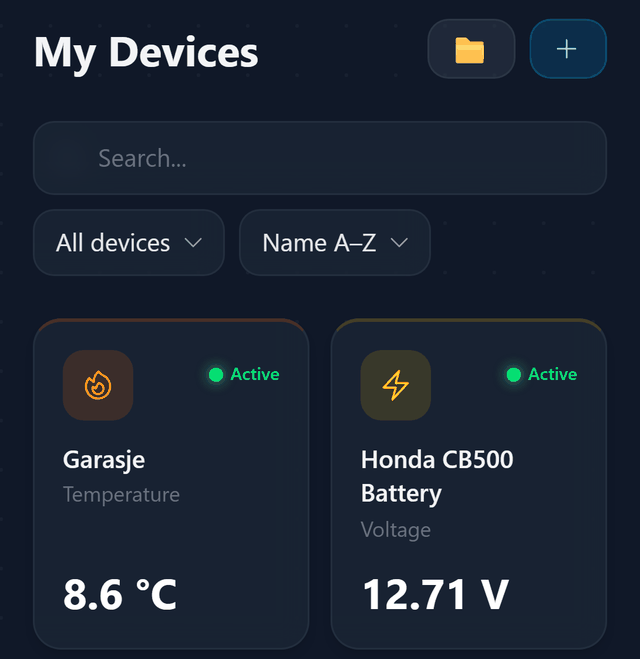
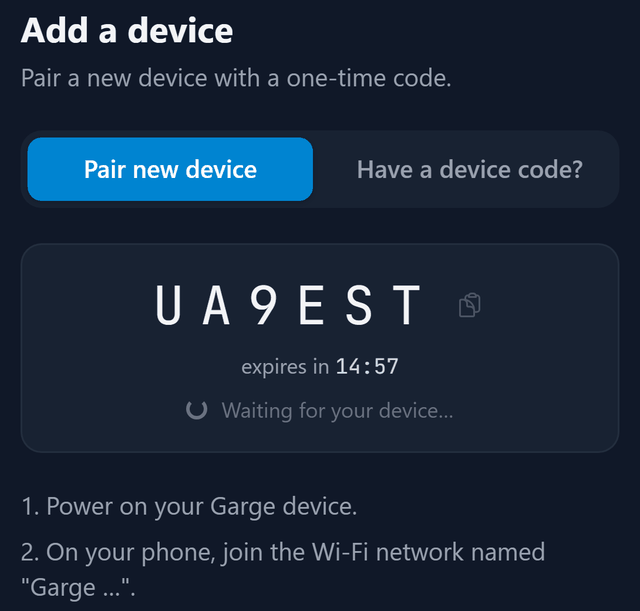
Garge Sensor: connect it to power with a USB-C cable.
Garge Voltmeter: connect it to the SAE plug on the 12 V battery.
The blue light blinks fast when the sensor is ready. Not blinking fast?
If the page shows “Pair device”, the sensor already has a Wi-Fi network saved. See what to do.
If it does not appear, reload the page. Still not showing?
How to fix it
In setup mode, the sensor creates its own Wi-Fi network, “Garge …”. A sensor that was set up before does not go into setup mode by itself.
How to fix it
Setup mode lasts up to 30 minutes.
How to fix it
How to fix it
To choose another network, select “Change Wi-Fi” instead.
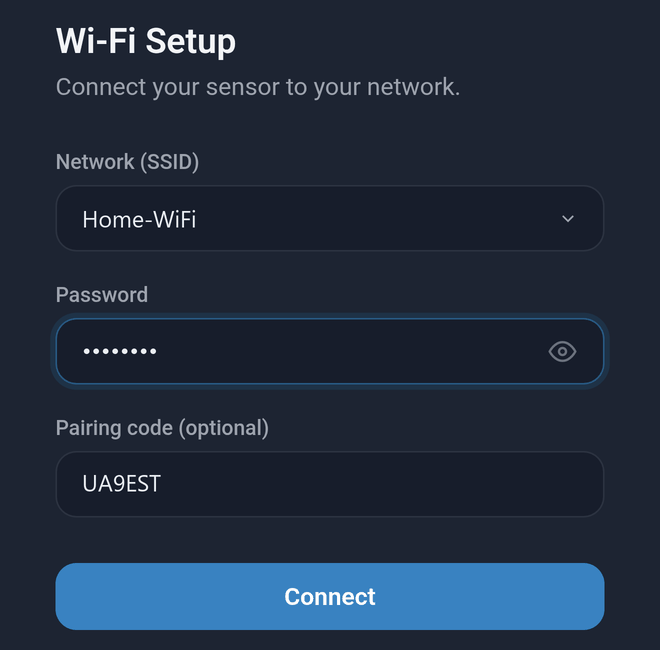
The page shows “Pair device” because the sensor already has a Wi-Fi network saved. The first setup page says “Pairing code (optional)”, but a new sensor needs the code. If you left it empty, the sensor goes into setup mode again so you can enter it.
How to fix it
Closed the page? Get a new pairing code.
A code lasts 15 minutes, and you can only use it once.
How to fix it
If you see “You need an active subscription to add more devices.”, select “See plans”. The sensors you already have keep working.
If “Sensor capacity” under “Profile” says “At capacity”, turn a sensor off or add capacity.
How to fix it
Check that your network is on 2.4 GHz and not hidden. The sensor only supports 2.4 GHz Wi-Fi. The setup page only lists the networks it finds. If your network is hidden, make it visible. If it is 5 GHz only, use a 2.4 GHz network.
If the password may be wrong, do this:
The setup page does not test the password. It only says “Data received. Restarting...” A sensor with a wrong password does not go back to setup mode by itself.
How to fix it
A Garge Sensor keeps trying to reconnect by itself. It also blinks slowly while it tries, so a slow blink does not always mean it has Wi-Fi.
A Garge Voltmeter that cannot connect sleeps longer between tries, up to 6 hours. After your Wi-Fi works again, it can take up to 6 hours for the voltmeter to show up in the app again. To skip the wait, press the Restart button. The voltmeter then tries to connect at once.
How to fix it
Press the Restart button to wake the voltmeter. To change its Wi-Fi network, open setup mode.
The voltmeter sleeps between readings and ignores the BOOT button while asleep.
How to fix it
If you see “Notifications blocked in browser settings.”, allow notifications for Garge in your browser.
If you see “Push notifications are not supported in this browser.”, use another browser. On iPhone, first select “Share” > “Add to Home Screen”, then open Garge from there.
Still stuck? Contact us.
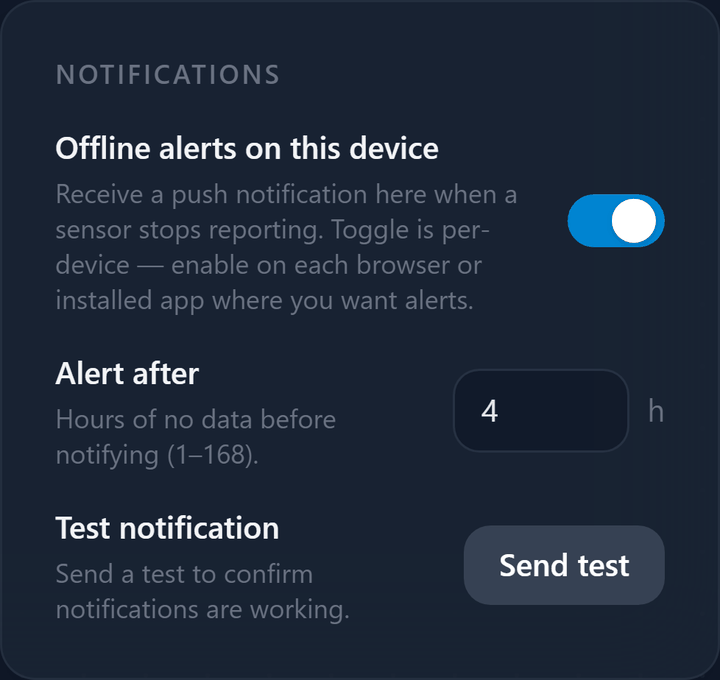
The switch only applies to the browser or installed app you are using now. Turn it on in each one where you want alerts. “Alert after” applies to your whole account.
A Garge Voltmeter sends a reading about once an hour, so choose more than 1 hour for it.
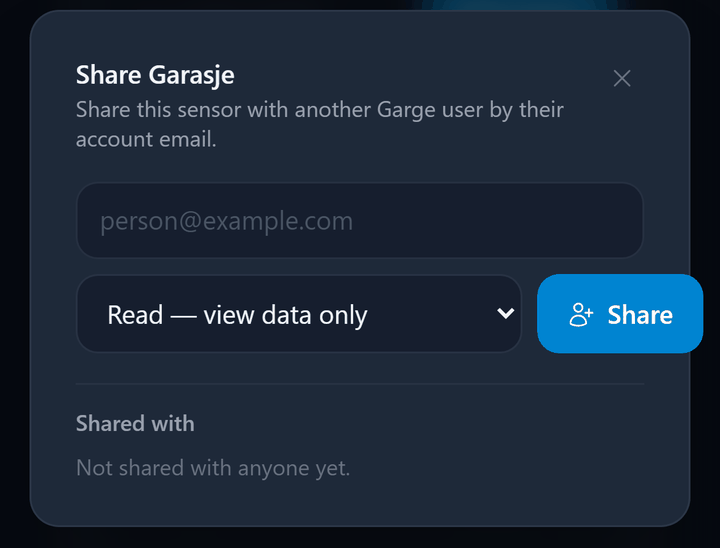
You share one card at a time. A Garge Sensor has two cards, temperature and humidity. Share each card the other user should see.
To stop sharing, open “Share” again and select the X next to the person under “Shared with”. Only the owner can share a sensor. The other user can remove the share by selecting “Leave” on the card.
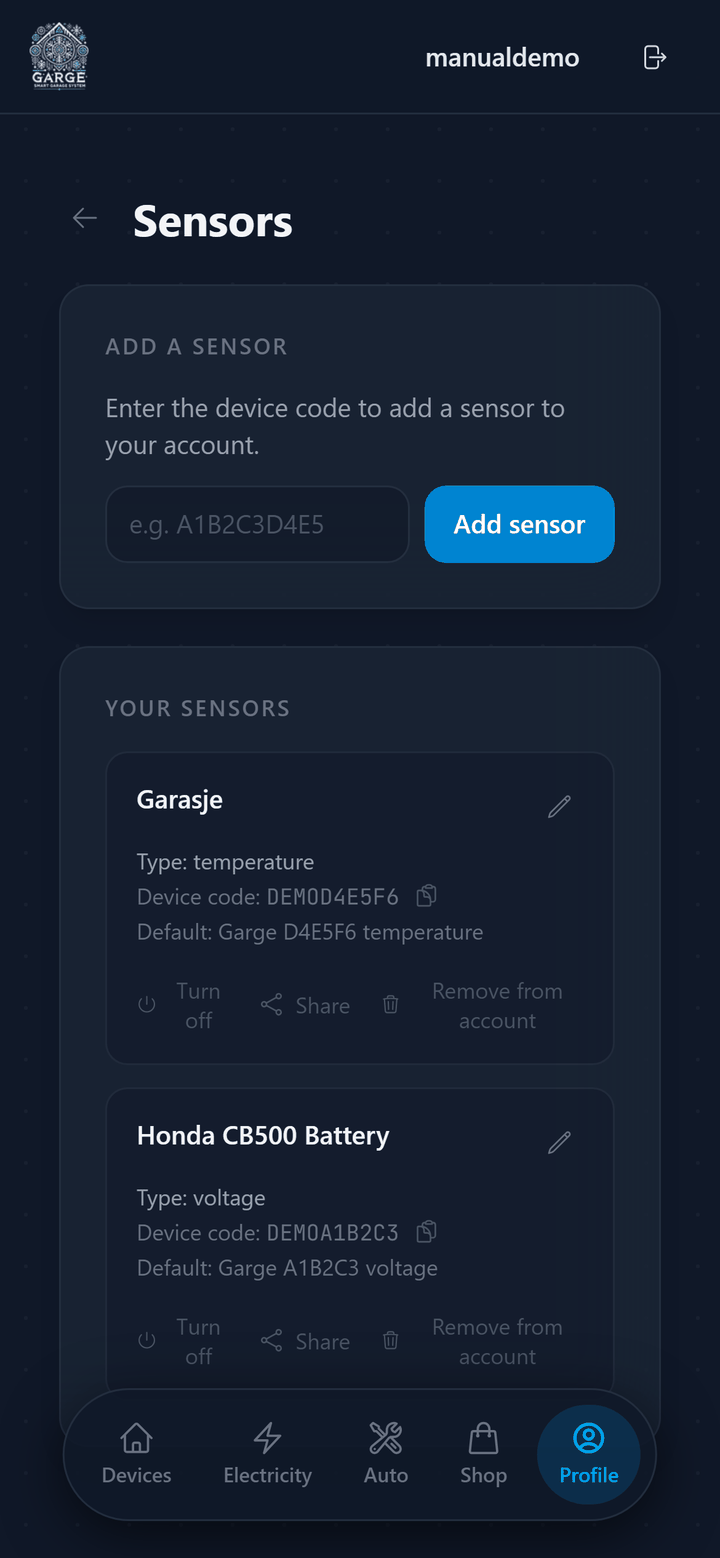
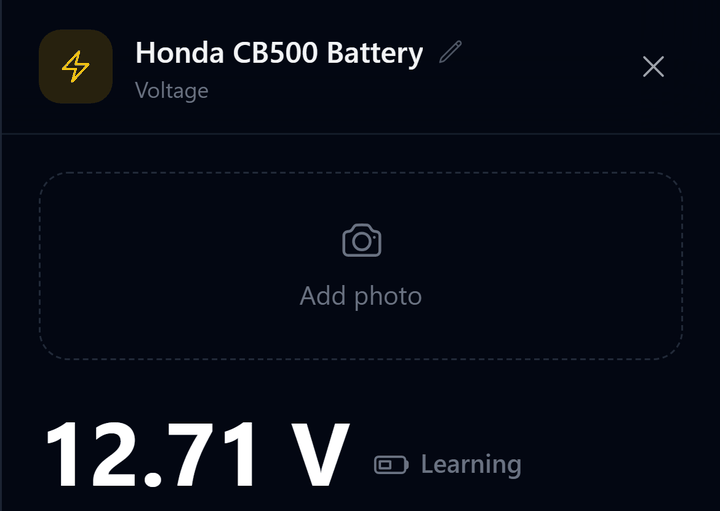
A name can have up to 50 characters. Each card has its own name, so a Garge Sensor has one for temperature and one for humidity.
In “Profile” > “Manage sensors”, you can also select the pencil on the card.
A Garge Sensor has two cards, temperature and humidity. If one stays, the new owner gets only part of the sensor and you keep access to the rest.
Cards from the same sensor have the same code in their default name, for example “Garge D4E5F6 temperature” and “Garge D4E5F6 humidity”. If you renamed a card, its default name is on the “Default:” line.
Removing a card deletes its custom name, photos, activities and thresholds from your account. Anyone you shared it with loses access. You can add the sensor back later with the code under “Device code”. This needs an active subscription.
The new owner does not see the seller's readings. The seller's Wi-Fi name and password stay on the sensor until the new owner's Wi-Fi replaces them.